SaralForce
SaralForce - AI Object Builder & Org Toolkit


A Chrome browser extension that pairs an LLM (Large Language Models) object designer with a full Salesforce inspector — build custom objects from natural language, then run SOQL, execute Apex, manage users, read debug logs and inspect your org without leaving the page.
Session handling builds on ideas from Salesforce Inspector Reloaded (MIT licensed — see LICENSE and THIRD-PARTY-NOTICES.md). SaralForce is an independent project by Bhajan Mandali and is not affiliated with, sponsored, or endorsed by Salesforce, Inc.
Features
- Natural Language Object Design: Describe what data you want to capture in plain English, and the AI proposes a complete Salesforce object with fields
- Multi-LLM Support: Works with OpenAI, Anthropic Claude, Google Gemini, OpenRouter, and any OpenAI-compatible API (OpenCodeZen, etc.)
- Interactive Refinement: Chat with the AI to modify the proposal - add fields, change types, adjust properties
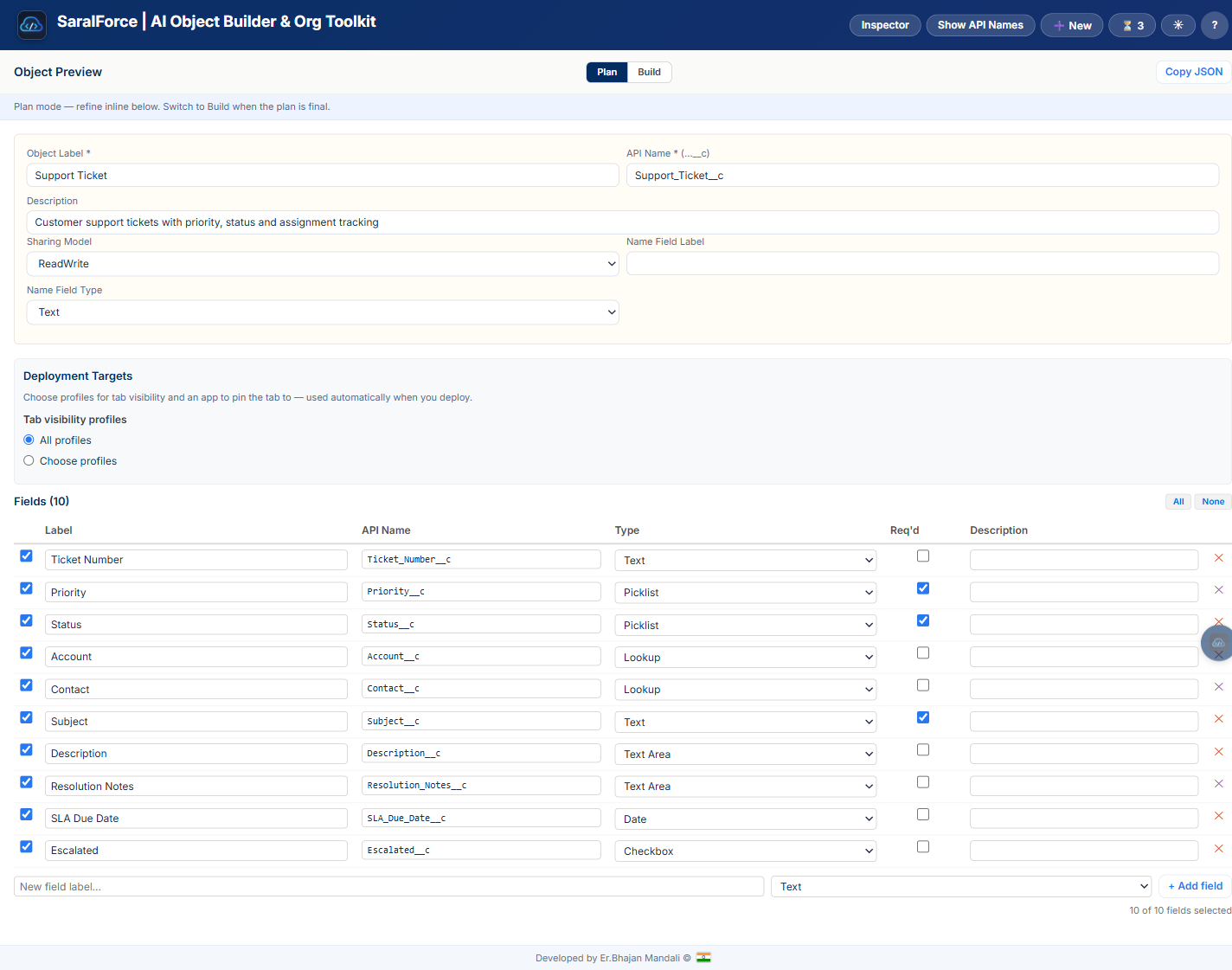
- Visual Preview (Plan / Build): Review the schema before deploying — labels, API names, types, required flags — then refine inline in Plan mode
- One-Click Deploy: Creates the custom object and all fields directly in your Salesforce org via the Tooling API, with profile tab-visibility targets
- Relationship Fields: AI suggests Lookup and Master-Detail relationships when appropriate
- Field Permissions: Configurable field-level security during deployment
- AI Query Repair: SOQL errors are explained and auto-fixed by the LLM with one-click apply
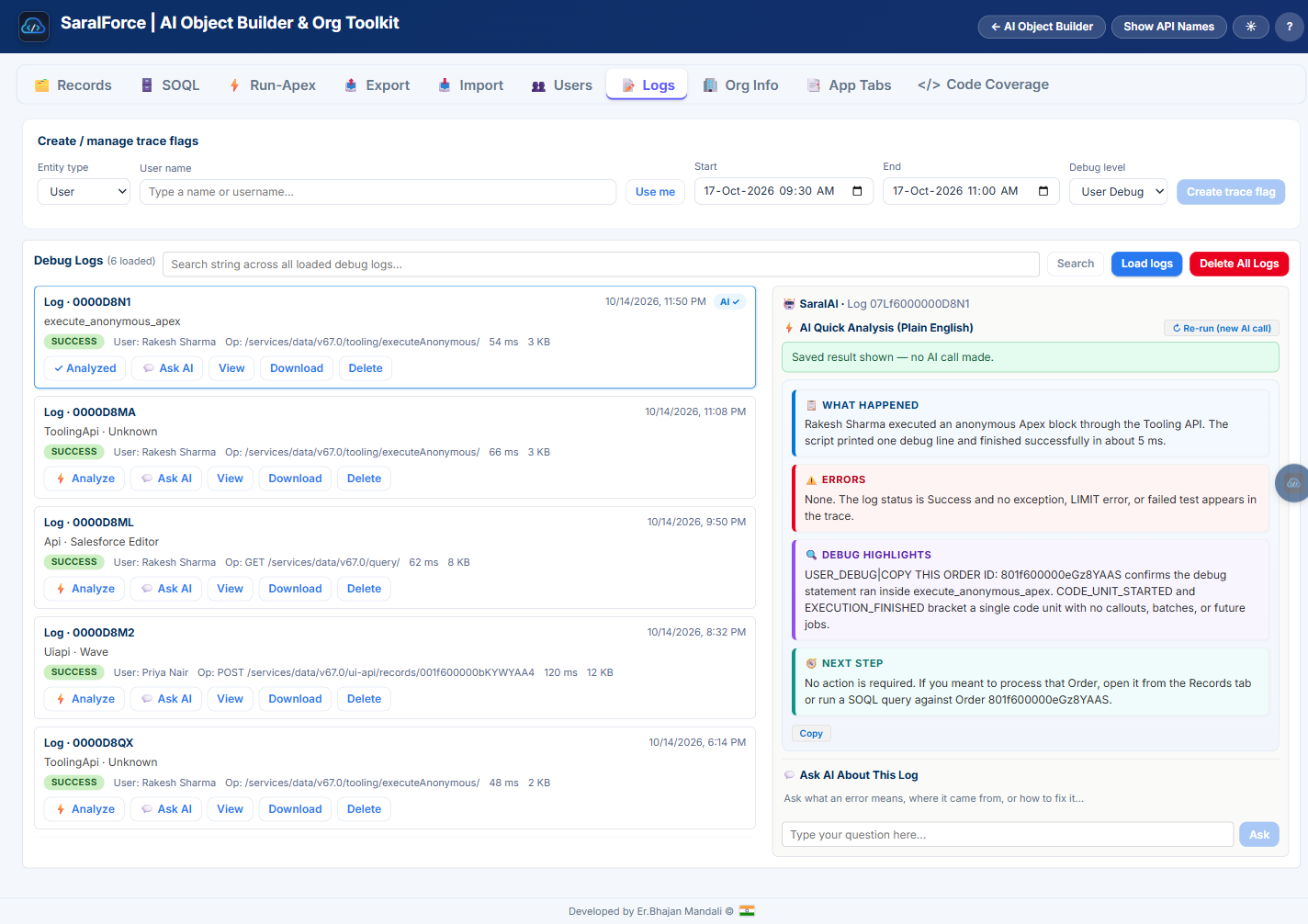
- AI Log Analysis: Debug logs get a plain-English verdict plus per-log AI chat
- Inspector Tools: Records browser (View / Read / Edit modes), SOQL runner, Apex executor, CSV export/import, user management with clone wizard, debug-log viewer with AI analysis, org info, app-tab assignment, code coverage
AI Object Builder
Describe what you want in plain English and the AI proposes the complete object — labels, API names, data types, required flags, picklist values, and Lookup/Master-Detail relationships. Keep chatting to refine it (“add a field for resolution notes”, “make Priority required”) and deploy when the visual preview looks right.
✨ Enhance Prompt turns a rough one-liner into a structured design brief before you send it: business purpose, key fields and their data types, expected record volume, relationships to standard objects, must-have vs. nice-to-have features, and security and sharing recommendations — with Accept / Discard controls.
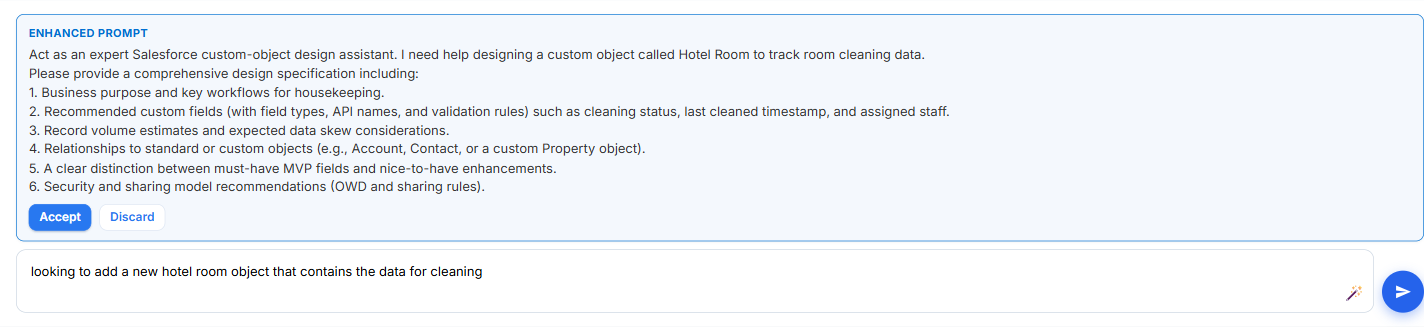
After the proposal arrives, the Object Preview opens in Plan mode: edit the object label, API name, sharing model and every field inline, pick deployment-target profiles, then switch to Build to lock the plan and deploy.
Inspector Tools
Open the Inspector from the header (or the sidebar button) to reach every tool below. The last opened tab and scroll position are restored the next time you open the panel.
SOQL
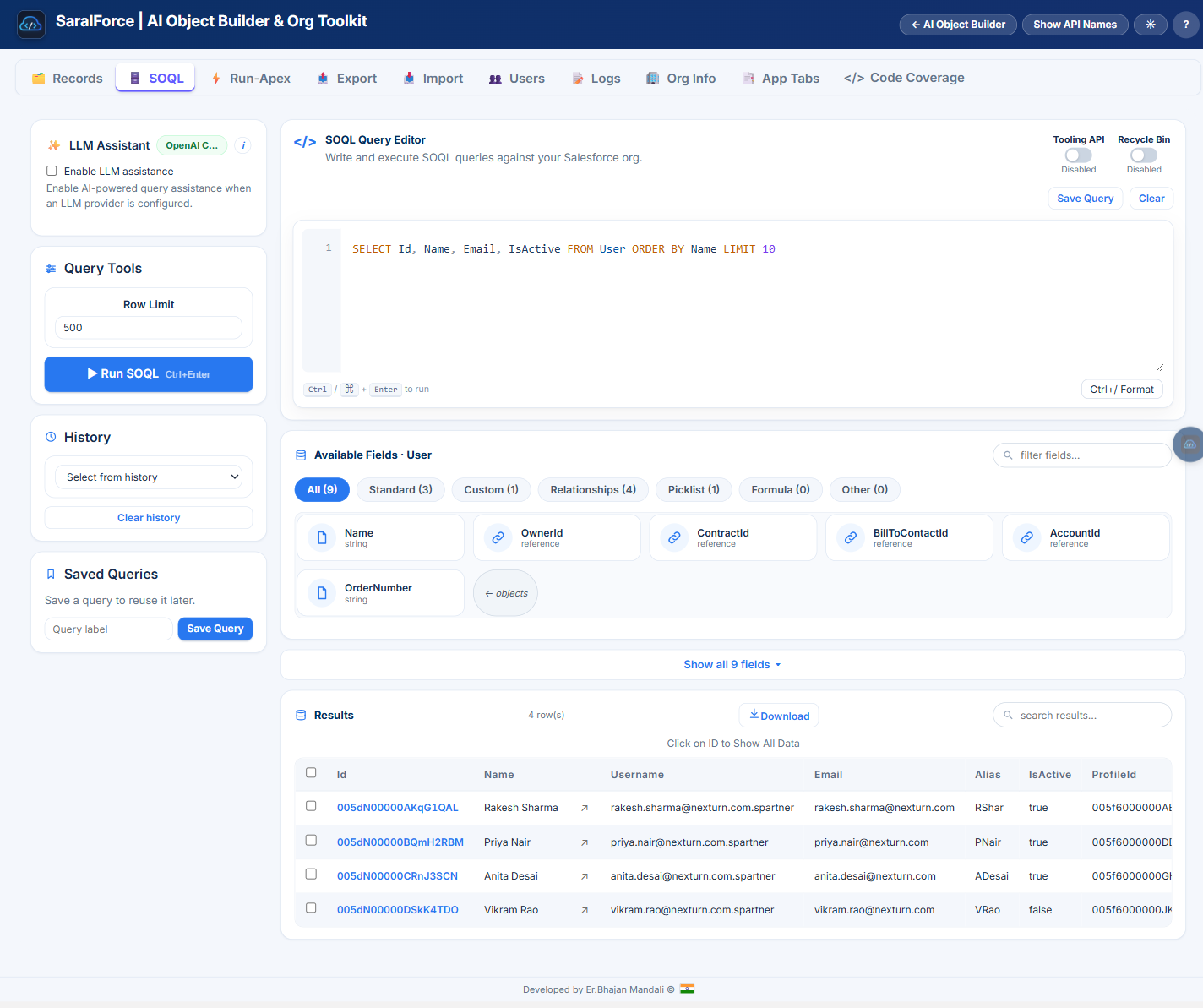
A two-column workspace: LLM assistant chip, row limit, run button, query history and saved queries on the left; the syntax-highlighted editor, colour-coded field explorer (with category pills) and results table on the right — no horizontal scrolling. Tooling API and Recycle Bin toggles switch the backing API per query. Click any ID cell in the results to open Show All Data for that record.
When Salesforce rejects a query, the extension asks the LLM for a ✨ Suggested fix: a plain-English explanation of what went wrong plus the corrected query, with Apply & Run and Copy buttons.
Run Apex
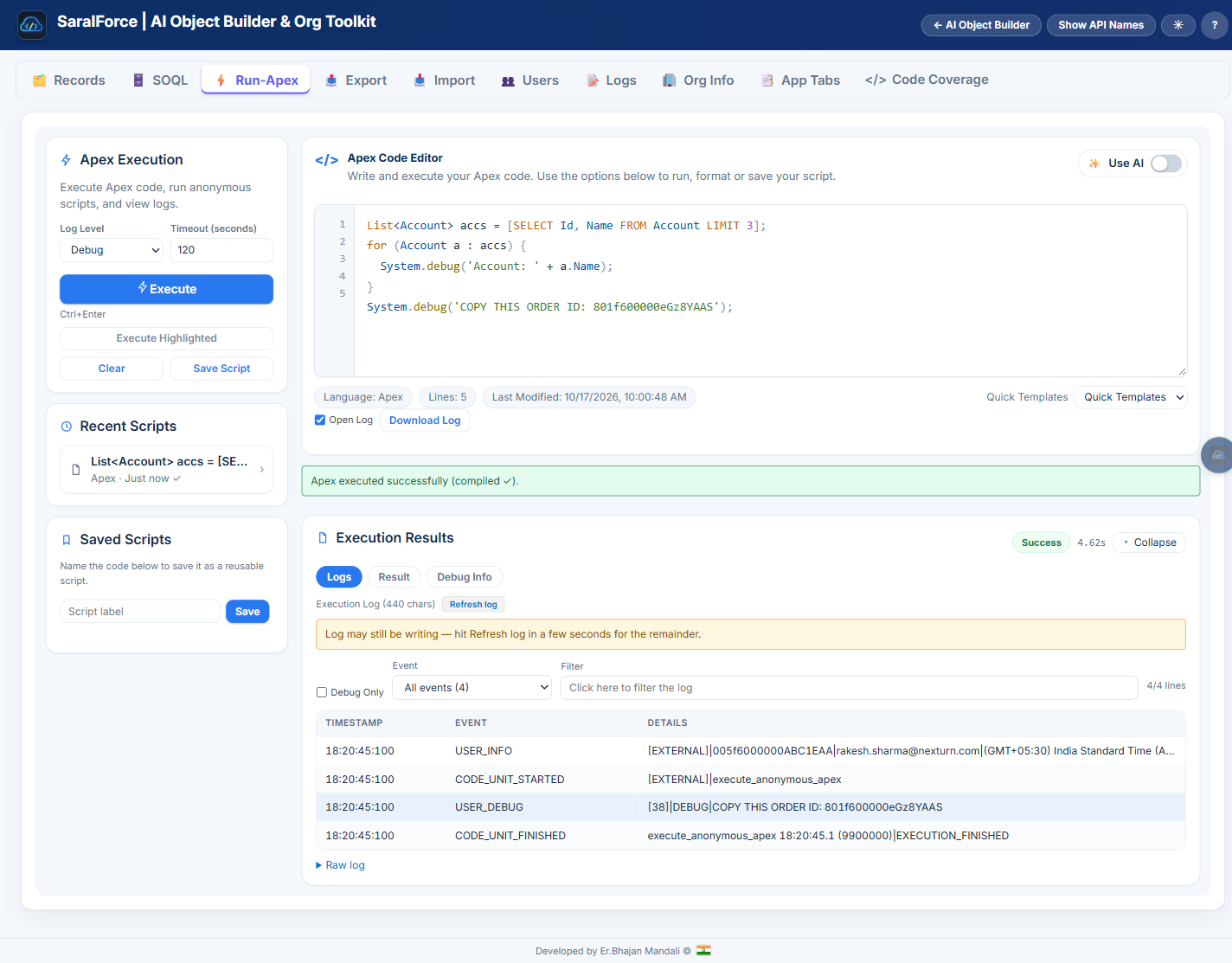
Execute anonymous Apex with a terminal-style editor: line numbers, syntax highlighting, Quick Templates, and saved/recent script chips. Choose the Log Level and Timeout, then Execute (or Ctrl+Enter) — or select a snippet and Execute Highlighted. Toggle Use AI to pre-check code before each run; compile errors get a suggested fix you can apply in one click. After a run, the Execution Results panel shows the debug log with event filters, a Debug-Only view, and the raw trace.
Debug Logs
- Load recent
ApexLogrows for any user or Apex class in a chosen time window, with trace-flag management built in. - ⚡ AI Quick Analysis (Plain English) — a one-click verdict per log rendered as four cards: What happened, Errors, Debug highlights, Next step. Results are cached per log ID, so clicking Analyzed again shows the saved result without another AI call; Re-run forces a fresh call when you want one.
- 💬 Ask AI — a per-log chat for drilling into any line of the trace.
- Search across every loaded log body, view/download individual logs, or delete them (single or bulk) straight from the panel.
Users
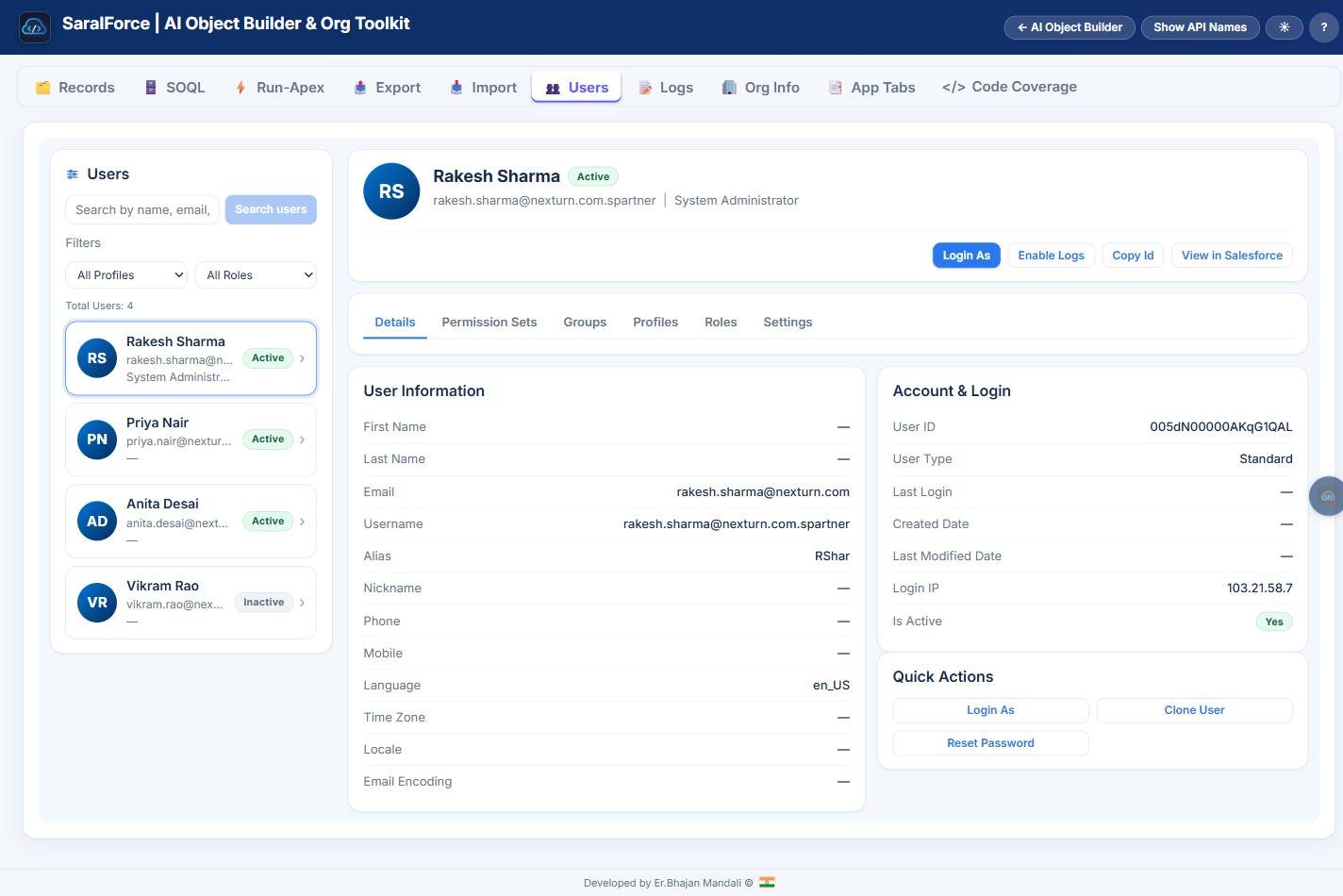
Search and filter the org’s users by profile or role, then select one to inspect: full detail tabs (Details, Permission Sets, Groups, Profiles, Roles, Settings), recent Login IP addresses, and quick actions — Login As, Enable Logs (30-minute debug trace), Copy Id, and View in Salesforce. Community users get an Experience-site login picker when live sites exist.
Clone User walks through a two-step wizard — pick the source user and the components to copy (permission sets, groups, role), review the summary, then create the new user and its assignments. Reset Password sends the standard Salesforce password-reset email via the User password API.
Records, Export & Import
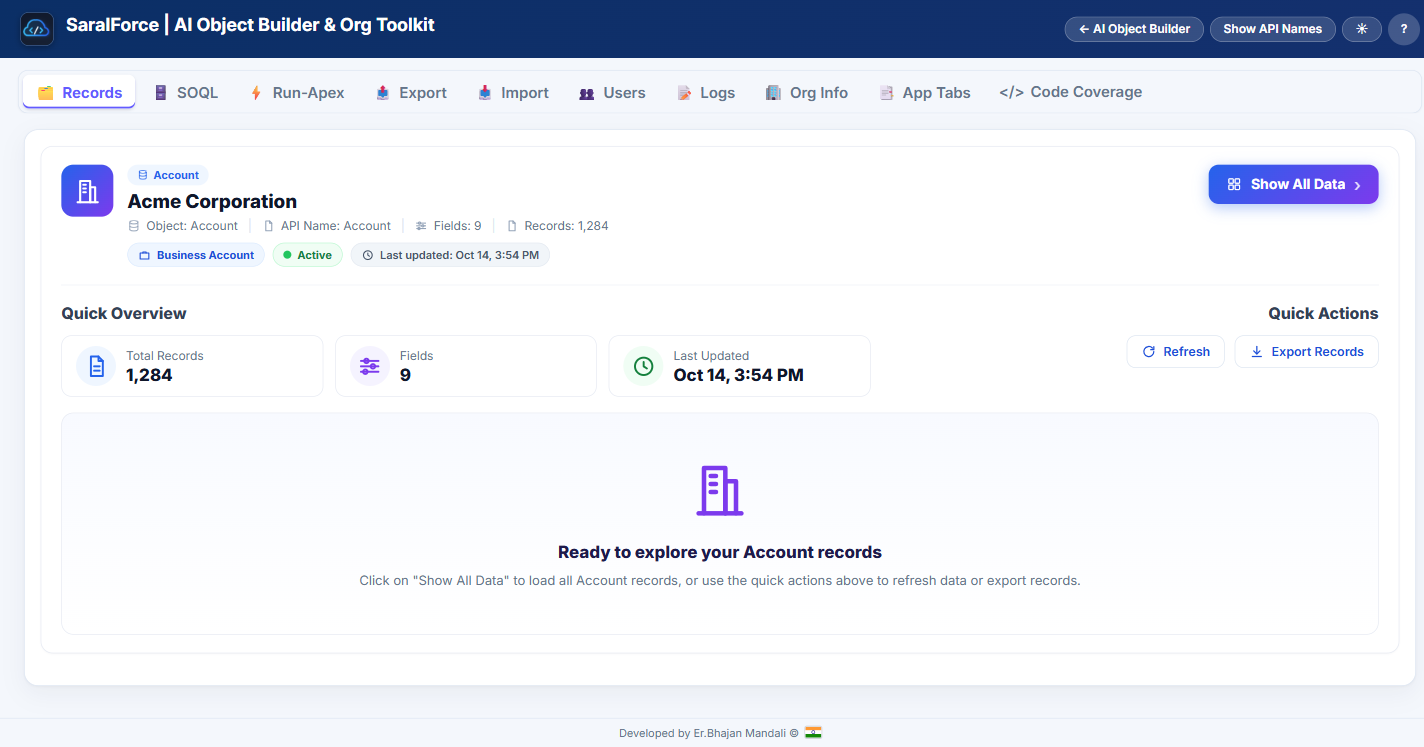
- Records — open any record in View, Read-only or Edit mode with a field summary, related-record lookups, Show-All-Data popup, and CSV export of the current layout.
- Export / Import — query any object and download CSV, or upload a CSV to create or update records with field mapping.
Org Info, App Tabs & Code Coverage
- Org Info — org identity, storage and API limits, recent setup-audit events and login history; an optional AI hygiene audit summarises what to fix first.
- App Tabs — assign custom tabs to console applications so new objects show up where your users work.
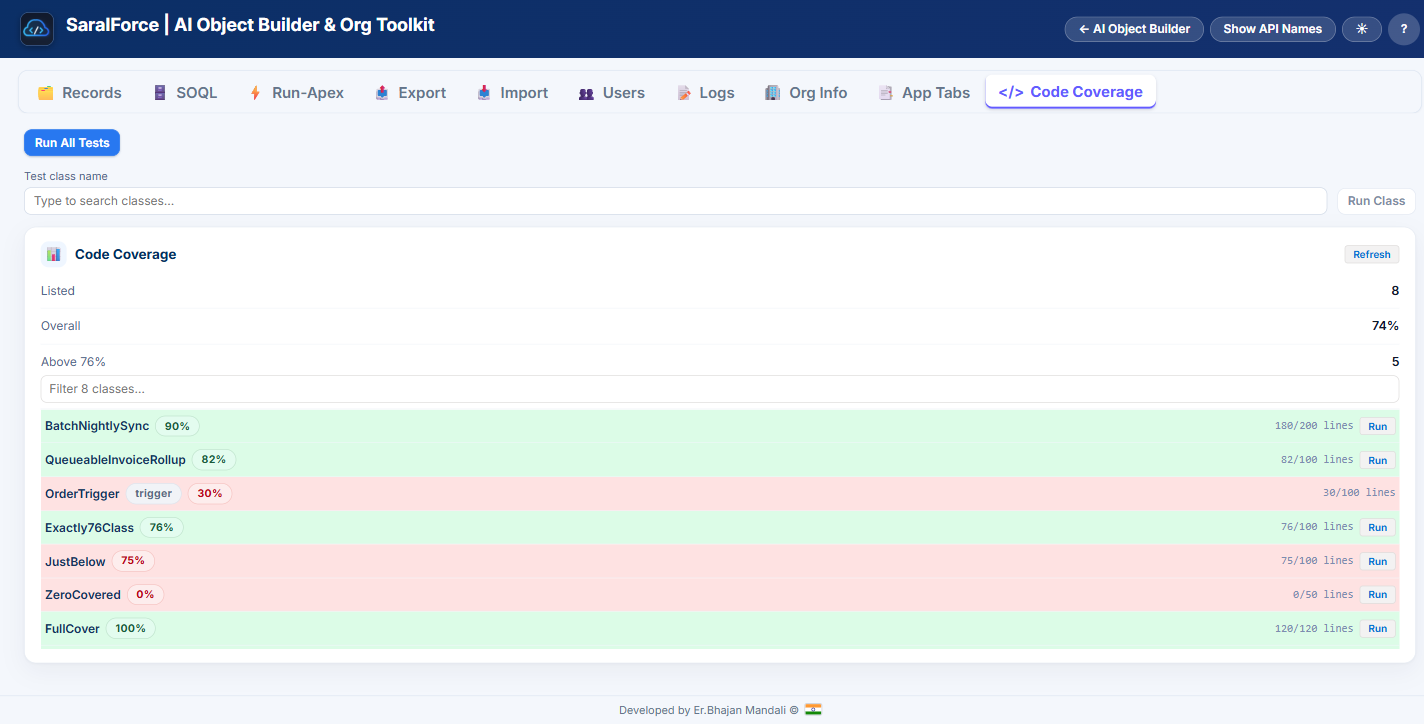
- Code Coverage — per-class coverage from
ApexCodeCoverageAggregate, test-class filtering, and a one-click test run with freshness polling.
Installation
Quick install (Microsoft Edge)
Install directly from the Edge Add-ons store: SaralForce on Microsoft Edge.
The Chrome Web Store version is coming soon.
Prerequisites
- Google Chrome (v88+) or Microsoft Edge browser
- Node.js with npm (for React dependencies)
- A Salesforce org where you have System Administrator permissions
- An API key from at least one LLM provider
Setup
-
Clone or download this repository
- Install dependencies (to get React):
cd sf-object-creator npm install npm run copy-react - Load the extension in Chrome:
- Open
chrome://extensions/ - Enable Developer mode (toggle in top right)
- Click Load unpacked
- Select the
addonsubdirectory of this project
- Open
- Configure your LLM provider:
- Click the extension icon on any Salesforce page
- Click Options (or open
options.htmlfrom the extension) - Select your LLM provider (OpenAI, Claude, Gemini, OpenRouter, or OpenAI-compatible)
- Enter your API key
- Select a model
- Click Save Settings then Test Connection
- Start creating objects:
- Navigate to your Salesforce org
- Click the extension icon
- Click SaralForce sidebar button
- Describe the object you want to create!
Usage Examples
Example 1: Payment Transactions
I want an object that captures payment transaction data including amount, status, payment method, and reference numbers
AI Output: Creates a Payment_Transaction__c object with fields:
- Amount (Currency)
- Status (Picklist: Pending, Completed, Failed, Refunded)
- Payment Method (Picklist: Credit Card, Debit Card, Bank Transfer, PayPal, Other)
- Reference Number (Text, External ID)
- Transaction Date (DateTime)
Example 2: Support Tickets with Relationships
Create a customer support ticket object that relates to Accounts and Contacts, with priority levels and assignment tracking
AI Output: Creates a Support_Ticket__c object with Lookup fields to Account and Contact, plus Priority picklist, Status picklist, and assignment fields.
Example 3: Refinement
After the initial proposal, you can say:
Add a field for the resolution notes and make the priority field required
The AI will update the proposal accordingly.
Supported Field Types
| Type | Description |
|---|---|
| Text | Short text (up to 255 chars) |
| Text Area | Multi-line text |
| Text Area (Long) | Very long text content |
| Number | Numeric values |
| Currency | Monetary amounts |
| Percent | Percentage values |
| Date | Date only |
| Date/Time | Date and time |
| Checkbox | Boolean true/false |
| Picklist | Single select from values |
| Picklist (Multi-Select) | Multiple select from values |
| Email addresses | |
| Phone | Phone numbers |
| URL | Web links |
| Lookup | Relationship to another object |
| Master-Detail | Required relationship to another object |
LLM Provider Configuration
OpenAI, Anthropic Claude, Google Gemini, OpenRouter, and any OpenAI-compatible endpoint (OpenCodeZen, etc.) are supported. One configuration drives every AI feature — the object-builder chat, Enhance Prompt, SOQL query repair, Apex pre-check, and debug-log analysis.
- API Key: your provider’s key (stored only in your browser’s local storage)
- Base URL: only needed for OpenAI-compatible endpoints and OpenRouter
- Models: the Options page always lists the currently supported models
What’s New
v1.4.21
- Chrome Web Store readiness — packaged goodbye page moved to an external script (MV3 CSP compliance), manifest description refreshed
- SaralForce logo on the Settings page links to the project site
- Footer credit links to the ErBhajanMandali site
- README: Edge Add-ons “Get it now” badge (Chrome coming soon) plus new screenshots for Enhance Prompt, Records and Code Coverage
v1.4.20
- OpenRouter provider — pick OpenRouter in Settings with its own API-key/base-URL placeholders and vendor/model ID guidance; shares the OpenAI-compatible adapter
- SOQL LLM chip no longer overlaps the editor title in light theme
- README refreshed with current screenshots for Object Builder, SOQL, Run Apex, Debug Logs and Users
v1.4.19
- Users tab rebuilt — auto-loaded user list with profile/role filters, full detail tabs (Permission Sets, Groups, Profiles, Roles, Settings), recent Login IP, Reset Password, and a two-step Clone User wizard (select components → review → create)
- Run-Apex polish — compact Log Level / Timeout controls, iOS-style Use AI pre-check switch, Execute + Execute Highlighted moved to the sidebar, header trimmed
- SOQL quality-of-life — click any result ID to Show All Data, plain
N row(s)counts, light-theme legibility fixes across the panel
v1.4.17
- Records rewritten with View / Read-only / Edit modes and summary header
- SOQL M3 two-column redesign with field explorer, Tooling API and Recycle Bin toggles, and terminal-style field tools
- CloudFlow light theme with Inter typography across the inspector
- Gemini model lineup refresh; last-page restore with a reload guard
v1.4.15
- Inspector-in-new-tab option, Show All Data button, full Apex log viewer
- Code Coverage tab, Experience-site login fix, aggregate LIMIT guard
- Editor success celebrations (plane / confetti / thor / spidey)
Architecture
sf-object-creator/
├── addon/
│   ├── manifest.json          # Chrome Extension Manifest V3
│   ├── background.js          # Service worker (session + LLM proxy)
│   ├── inspector.js           # Salesforce API layer (REST/SOAP)
│   ├── inspector-tools.js     # Inspector tabs (Records, SOQL, Run-Apex, Users, Logs, …)
│   ├── object-creator.html/js # Main feature page (chat, preview, inspector shell)
│   ├── options.html/js        # LLM provider settings
│   ├── button.js/css          # Content script (injected into SF pages)
│   ├── sf-time.js             # Shared time-zone helpers
│   ├── llm/
│   │   ├── llm-service.js     # Provider abstraction + config
│   │   ├── openai.js          # OpenAI adapter
│   │   ├── claude.js          # Anthropic Claude adapter
│   │   ├── gemini.js          # Google Gemini adapter
│   │   └── openai-compatible.js
│   ├── prompts/
│   │   └── system-prompt.js   # AI prompt engineering
│   └── styles/slds/           # Salesforce Lightning Design System CSS
└── package.json
Security
- API keys are stored locally in your browser (
localStorage) and never sent anywhere except the LLM provider you configured - The extension communicates directly with Salesforce APIs using your existing session
- Only your natural language descriptions are sent to LLM providers - object/field data stays in your org unless you paste it into the chat
- Same authentication model as Salesforce Inspector Reloaded (OAuth2 PKCE + session cookies)
Permissions
cookies: Read Salesforce session cookies for API authenticationstorage: Store LLM configuration and extension settings- Host permissions for Salesforce domains and LLM API endpoints
Development
# Install dependencies
npm install

# Copy React files to addon directory
npm run copy-react

# Load in Chrome
# 1. Open chrome://extensions/
# 2. Enable Developer mode
# 3. Click Load unpacked
# 4. Select the addon/ directory
License
MIT License — see LICENSE. Session/auth code derives in part from
Salesforce-Inspector-reloaded (MIT © 2023 Thomas Prouvot); see
THIRD-PARTY-NOTICES.md for full attribution.